Note
Access to this page requires authorization. You can try signing in or changing directories.
Access to this page requires authorization. You can try changing directories.
Important
Actionable Messages use Microsoft Entra ID–based token authentication. The transition from legacy (EAT) authentication completed on June 8, 2026. Legacy authentication is no longer supported.
Integrations that have not been updated to use Microsoft Entra ID tokens no longer function. Partners must use Entra ID–based token authentication for all Actionable Messages integrations. For more information, see Enable Microsoft Entra ID token for Actionable Messages.
Admin guide: View providers with Auth type
Admins can download the list of all approved providers in their organization along with the token type being used. The data is exported in a .csv format for easy analysis and reporting.
How to download the provider list
- Go to the Actionable Email Developer Dashboard.
- In the upper-right corner, select the Export Approved Providers button to export the list of approved providers in .csv format.

Important notes
- You see the download button only after filtering by approved providers.
- The downloaded file contains provider details along with their token type.
- If a timeout error occurs, the error message is displayed in the UI and disappears automatically after 5 seconds.
Register an app in Azure
Note
If you already have an app registration in Azure, skip to the next step.
- Sign in to the Microsoft Entra admin center.
- If you have access to multiple tenants, use the Settings icon to switch to the desired tenant via Directories + subscriptions.
- Go to Identity > Applications > App registrations and select New registration.
- Enter a display name for your application.
- Specify who can use the application in the Supported account types section:
- Accounts in any organizational directory (Any Microsoft Entra ID tenant - Multitenant): For partners doing a Global scope AM registration.
- Accounts in this organizational directory only: For Single Tenant App (Org and test scope registration).
- Leave Redirect URI (optional) blank.
- Select Register to complete the registration.
Register a new AM provider
Register a new provider using Actionable Messages (office.com), or use the Migrate to MSEntra button on your existing registration to create a copy.
Fill in the MsEntra Auth section with:
MsEntra Application ID
AppIdUri (auto-generated; must be allowlisted in your app as shown in the next section).
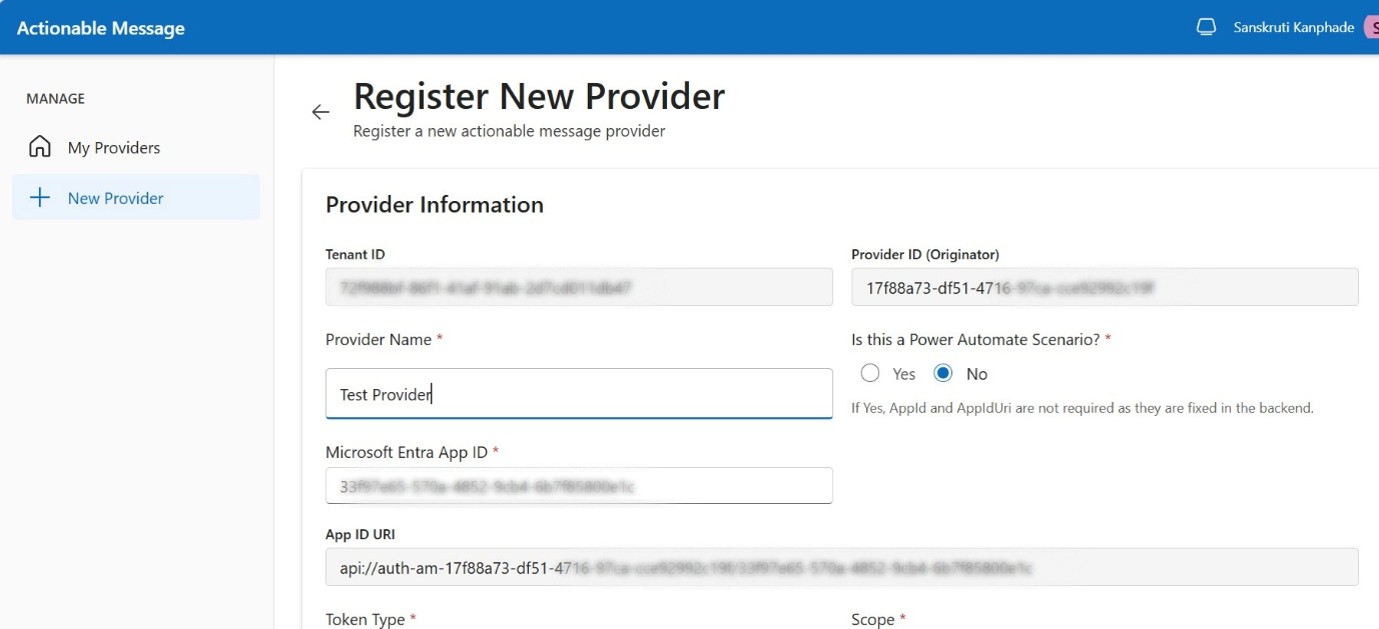
Approval and onboarding of the AM registration remain unchanged.
Tip
Use this new registration to test the Microsoft Entra ID token scenario end-to-end. Gradually move traffic to the new registration once validated.
Expose an API and preauthorize the Actions app
Select Expose an API from the left navigation pane of the registered app.
Add a URI under Application ID URI. Use the AppIdUri generated in the provider registration. Example format:
api://auth-am-xxxxxxxx-xxxx-xxxx-xxxx-xxxxxxxxxxxx/xxxxxxxx-xxxx-xxxx-xxxx-xxxxxxxxxxxxAdd the scope for this app under Add a scope section (for example, Global.Test).
Choose a value for Who can consent?.
- Admins and users: Consent from either works.
- Admins only (Recommended): Only admin approval works.
Once an admin authorizes, consent applies to the whole tenant and users aren't prompted again.
Go to Add a client application and authorize Action app ID
48af08dc-f6d2-435f-b2a7-069abd99c086to the scopes you created.
Validate the Microsoft Entra ID token
When your service receives the token in the request from the Actions service, validate it. For details on validating tokens, see Access tokens in the Microsoft identity platform.
There are also code samples for Microsoft identity platform authentication and authorization for validation in your preferred language or framework.
Sample token
{
  "alg": "RS256",
  "kid": "27643737-6767-4678-9714-96485a53e23b",
  "typ": "JWT"
}.{
  "aud": "https://graph.microsoft.com/",
  "iss": "https://login.microsoftonline.com/1234567890",
  "iat": 1673495600,
  "nbf": 1673495600,
  "exp": 1673499200,
  "aio": "AWQAm/8TAAAAbIRXVv66AlGAbTpvmfbtyMHZVpuhGjjasLVHf73tIlZI6dtwBFJQFCXUTDLxNnopKxopumbIJAMd3LqIQ==",
  "azp": "1234567890-abcdefghijklmnopqrstuv",
  "amr": [
    "pwd"
  ],
  "family_name": "Doe",
  "given_name": "John",
  "groups": [
    "Admins",
    "Users"
  ],
  "preferred_username": "[email protected]",
  "sub": "AUCeKGQXBnSqpWfTYEk0li8TyNul1QSuSxcPplBAwaQ",
  "tid": "1234567890",
  "uti": "yvEyycOza9zpyjmgkdDqA",
  "ver": "2.0"
}.[Signature]
Get approval from admins
For a Global scope actionable message registration to work in any tenant, the tenant admin must consent to the app hosting the target URL. Admins can grant consent by using the Actionable Email Developer Dashboard.
Go to the Actionable Email Developer Dashboard and select the AAD Consent button (left side panel).

The Admin Consent Dashboard opens, listing all third-party providers. Apps that need consent show a Grant Consent button.
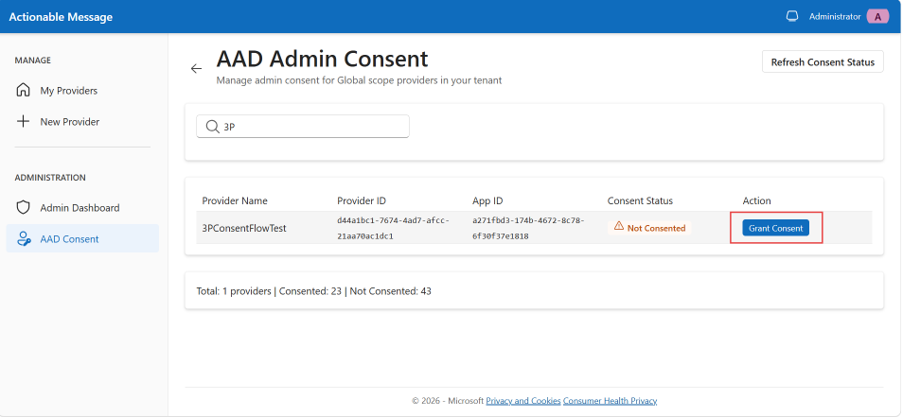
Select Grant Consent to start the consent flow. Sign in and review the requested permissions.
Ensure Consent on behalf of your organization is selected for tenant-wide consent.
Select Accept to grant consent. The Microsoft Entra app is now authorized in your tenant. The browser redirects back to the dashboard where the app status is Consented.

If status remains Consenting, use the Refresh Consent Status button to update.
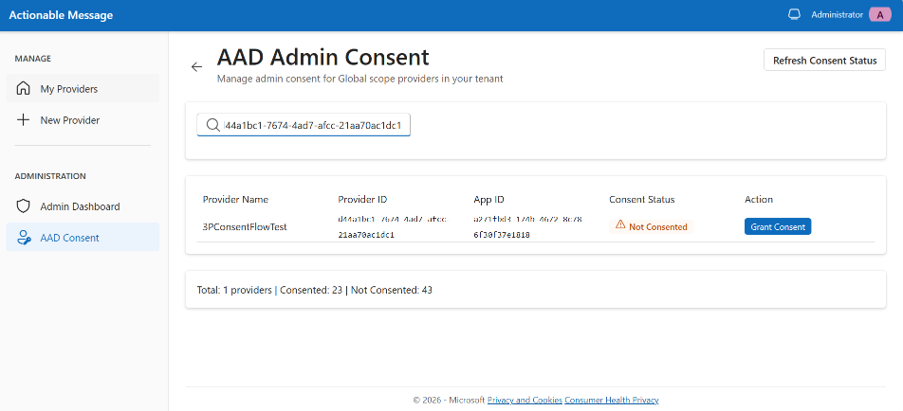
Use the search bar to find a provider by Name, Provider ID, or Microsoft Entra ID.
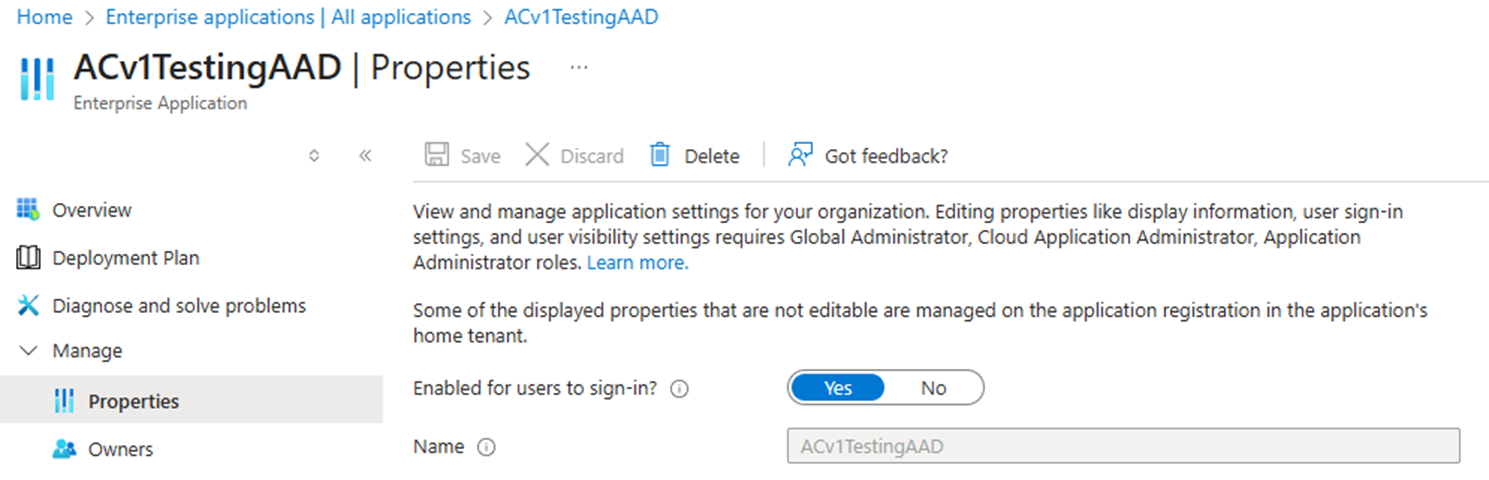
To remove consent, open the Azure portal and select Enterprise Applications. Search for the app's service principal and delete it in Properties.